The Email Templates section in Testpress allows you to customize the email that is sent to users only after a user account is successfully created from the admin panel.
This email is automatically triggered once the admin completes user creation and is used to share login credentials, assigned batch details, and other essential information with the user. No other system actions trigger this email.
How This Email Helps
Communicates login credentials to newly created users
Confirms successful account creation
Shares assigned batch information and relevant links
Ensures consistent and professional onboarding communication
Trigger Condition
This email is triggered only when a user is successfully created from the admin panel.
Step 1: Go to Email Templates
Navigate to Settings in your Testpress admin panel.
Click on Email Templates.
Step 2: Update the Email Template
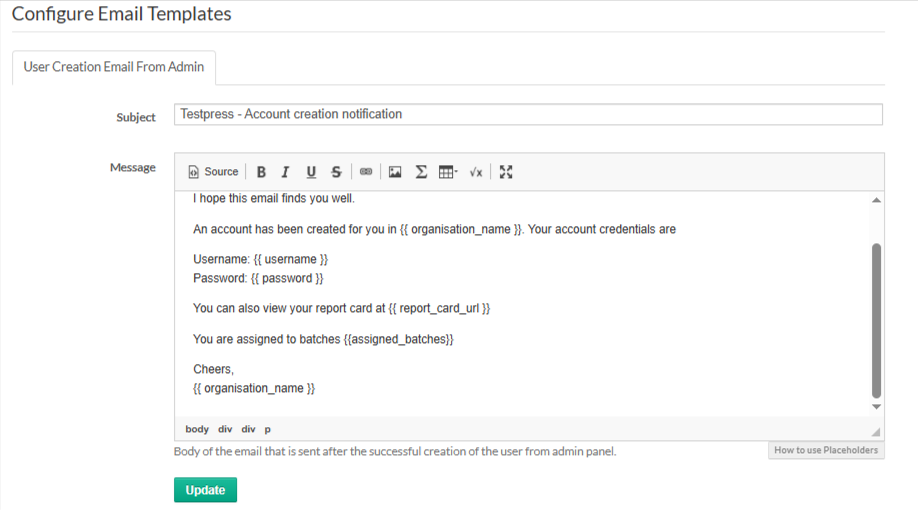
Select the User Creation Email From Admin template.
Update the Subject line as required.
Edit the Message content.
Use placeholders such as {{ username }}, {{ password }}, {{ organisation_name }}, and {{ assigned_batches }} to dynamically insert user-specific details.
Click Update to save the changes.
Important Notes
Do not remove placeholders unless necessary, as they are required to display user details correctly.
Review the email content carefully before saving.
Changes will apply to all future users created from the admin panel.
This template controls the email sent after successful user creation from the admin panel, helping ensure clear and consistent communication with newly added users.
Was this article helpful?
That’s Great!
Thank you for your feedback
Sorry! We couldn't be helpful
Thank you for your feedback
Feedback sent
We appreciate your effort and will try to fix the article