This section helps you export detailed reports for any exam conducted on your Testpress LMS. These reports allow you to analyze student performance, track participation, and download exam-related data for review or record-keeping.
Using Test Reports, you can export scores, answer sheets, attempt status, and more for a specific exam.
How to Export Test Reports
Log in to your Testpress Admin Dashboard.
Navigate to Exams.

3. Select the exam for which you want to download the report and click on Statistics for the selected exam.
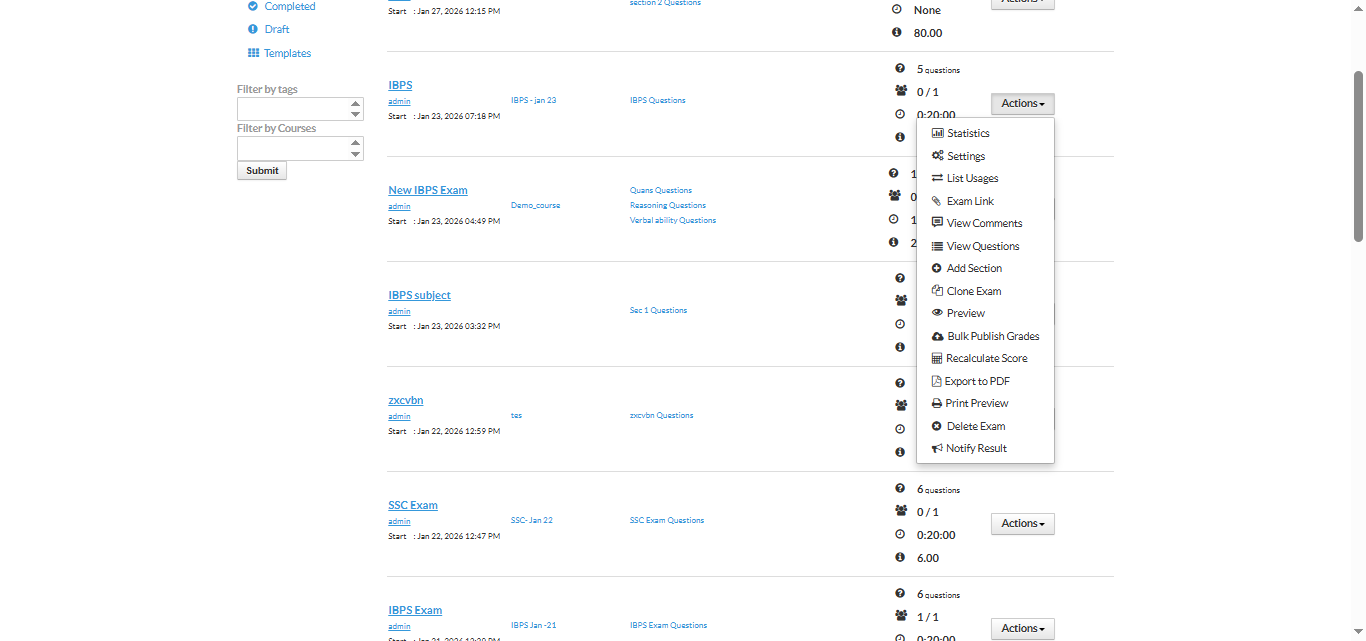
Click on the Options dropdown (top-right corner).
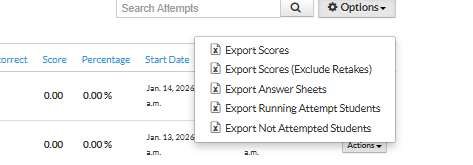
Choose the required report type from the list. Once you request a report, it will be generated in the background and sent to the registered admin email ID associated with your Testpress account
Available Test Report Types
You can export the following reports based on your requirement:
Export Scores
Downloads scores of all students who attempted the exam.Export Scores (Exclude Retakes)
Downloads scores excluding retake attempts, useful for final evaluations.Export Answer Sheets
Downloads students’ submitted answer sheets for review.Export Running Attempt Students
Lists students who are currently attempting the exam.Export Not Attempted Students
Lists students who have not attempted the exam.
Why Use Test Reports?
Analyze student performance in detail
Track exam participation and completion status
Maintain academic records
Share reports with faculty or management
Was this article helpful?
That’s Great!
Thank you for your feedback
Sorry! We couldn't be helpful
Thank you for your feedback
Feedback sent
We appreciate your effort and will try to fix the article