This section explains how to create courses and add different types of learning content in Testpress.
Courses form the foundation of products, allowing you to organize lessons, tests, live classes, and assignments in one place. A well-structured course helps learners follow a clear learning path and makes enrollment and content access simple.
This setup is commonly used by:
Coaching institutes
Tutoring centers
Training and certification providers
Course Creation
Steps to Create a Course
Go to the Courses tab and click Courses.
Click Create Course to start the setup.
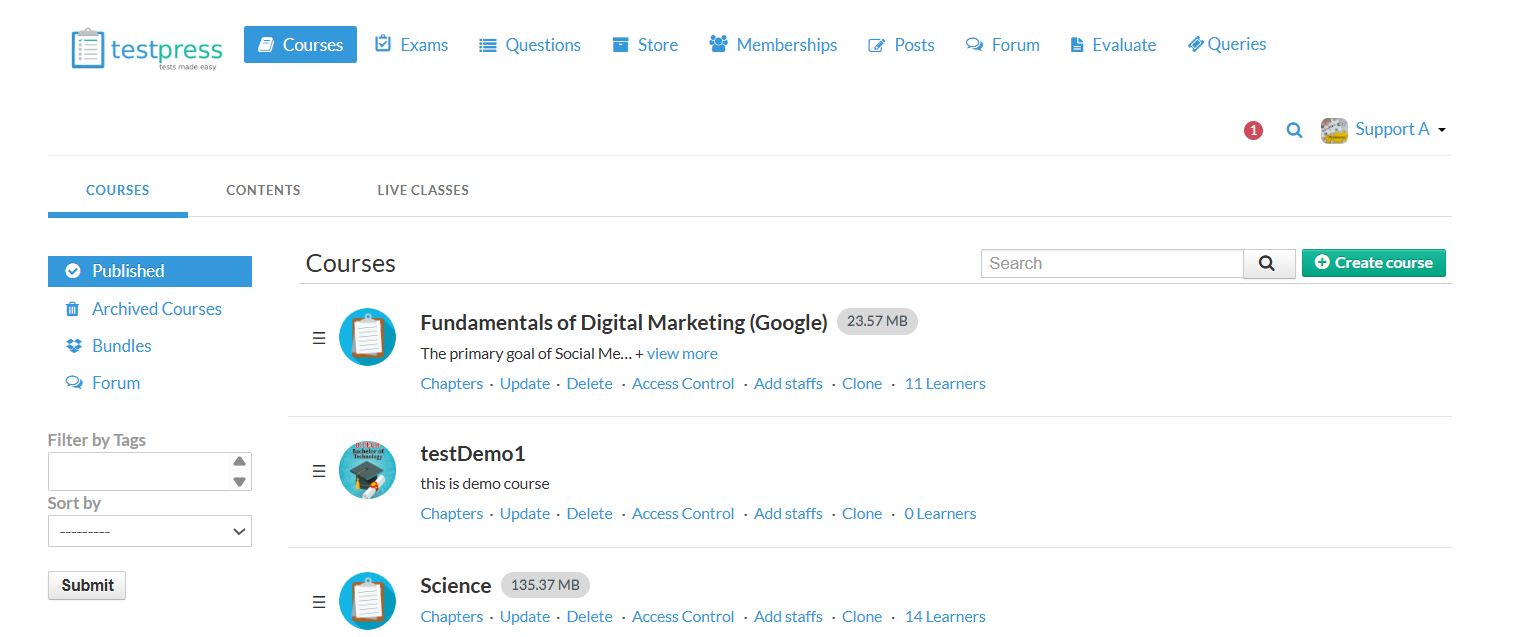
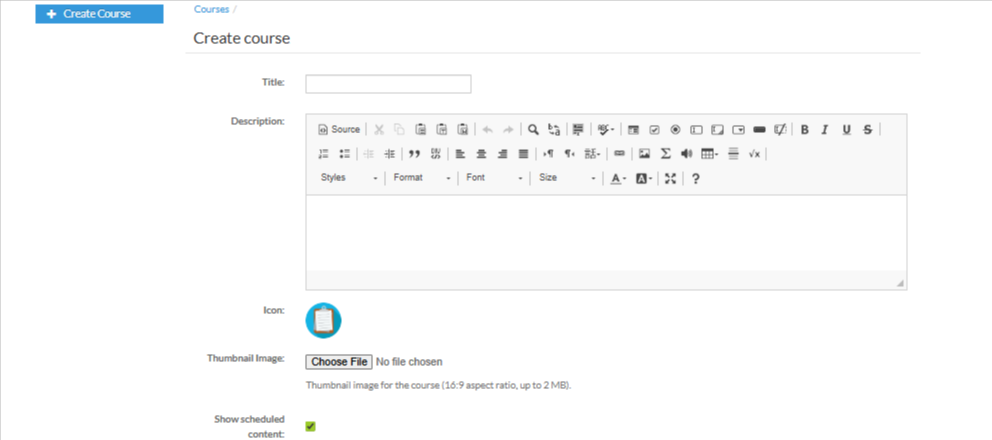
Course Setup Details
During the setup, you can:
Enter the Course Name
Optionally add:
Course description
Thumbnail image
Optional Course Settings
You can enable the following features if required:
Show Scheduled Content
Displays future-scheduled content in a locked state.Enable Progressive Lock
Prevents users from accessing the next test until the current one is completed.Enable Discussions
Allows learners to create posts and interact within the course.Allow Custom Test Generation
Lets users create custom tests based on course content.
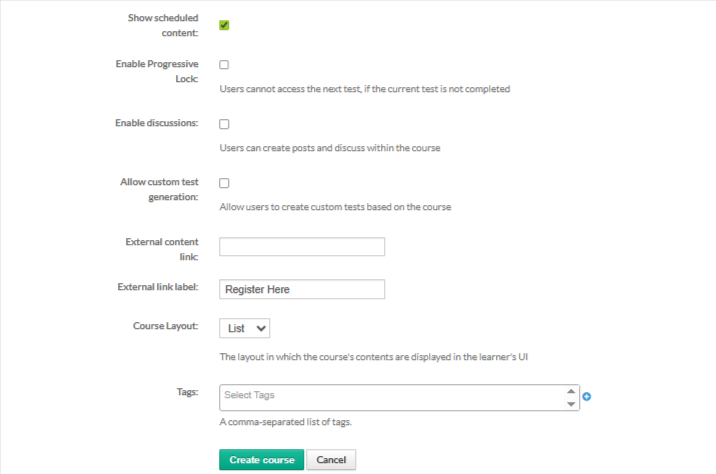
Click Create Course to finish.
Adding Chapters and Structure
Click Add to create a Chapter / Folder.
Enter:
Chapter name
Optional description
Optional icon image
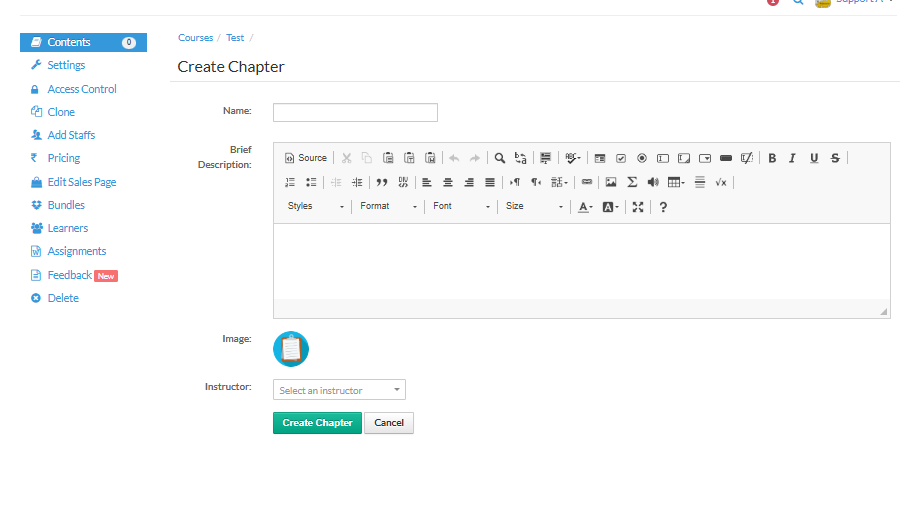
Once a chapter is created, you can:
Add sub-chapters, or
Add content directly to the chapter
Adding Different Types of Content
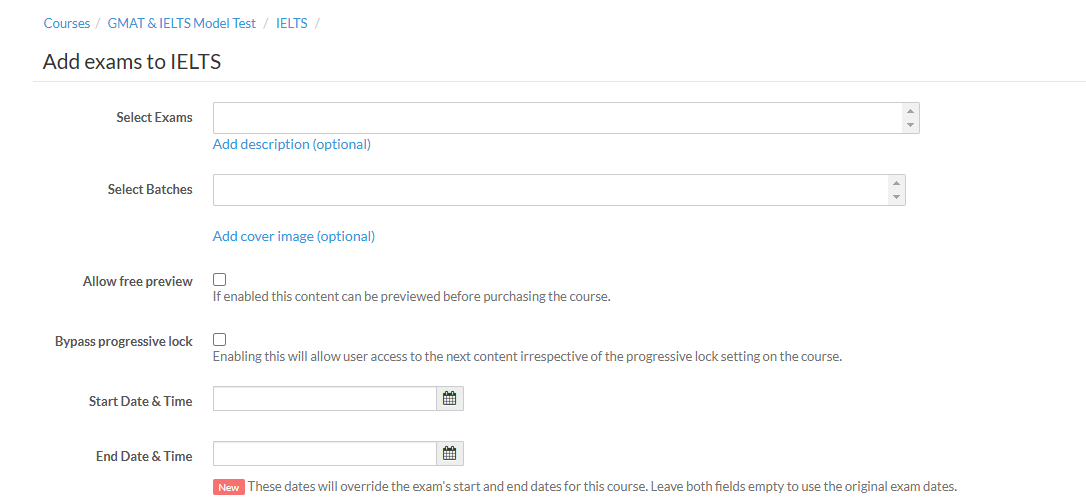
A. Add Exam
Click Add Existing Exam
Select an already created exam to attach it to the course
B. Schedule Zoom Live Class
Steps to Schedule a Live Class
Open the required course.
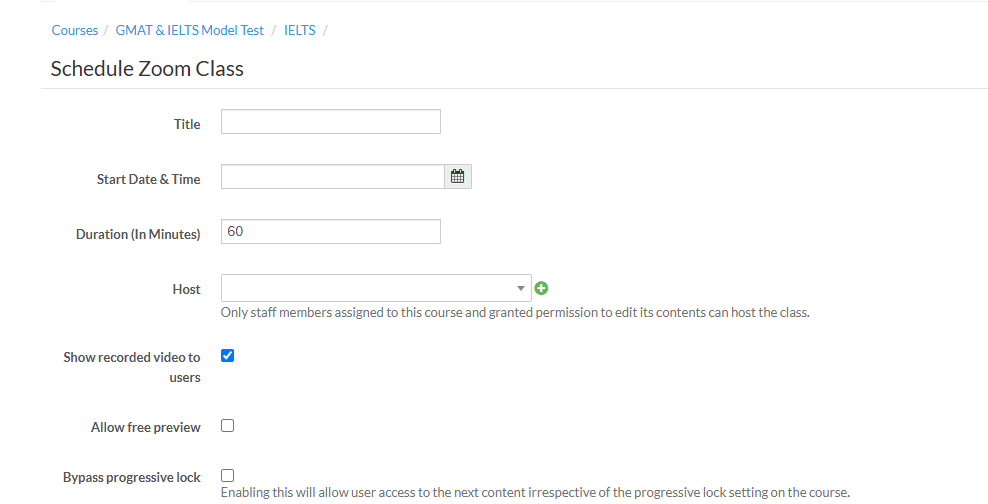
Click Add → Select Schedule Zoom Class.
Enter:
Title
Date
Time
Duration
Enable Show recorded video to users if learners should access the recording later.
Click Submit to schedule.
Steps to Start the Live Class
Click Start Class to begin the session.
Note:
Recurring meetings are not supported.
Once the class ends, the live session is replaced with the recorded video.
Multiple live classes must be scheduled individually.
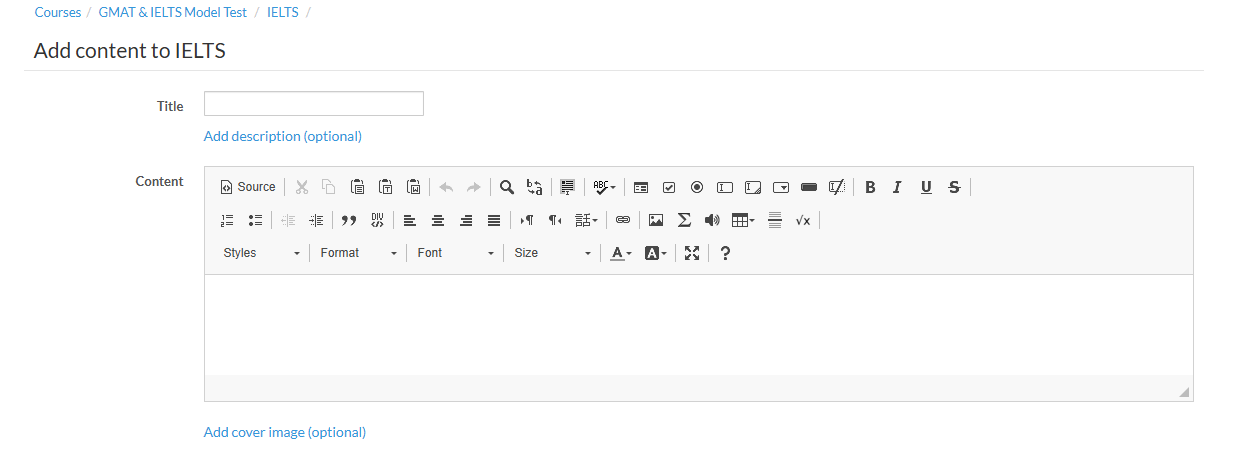
C. Add Notes
Paste text content directly to provide notes to learners.
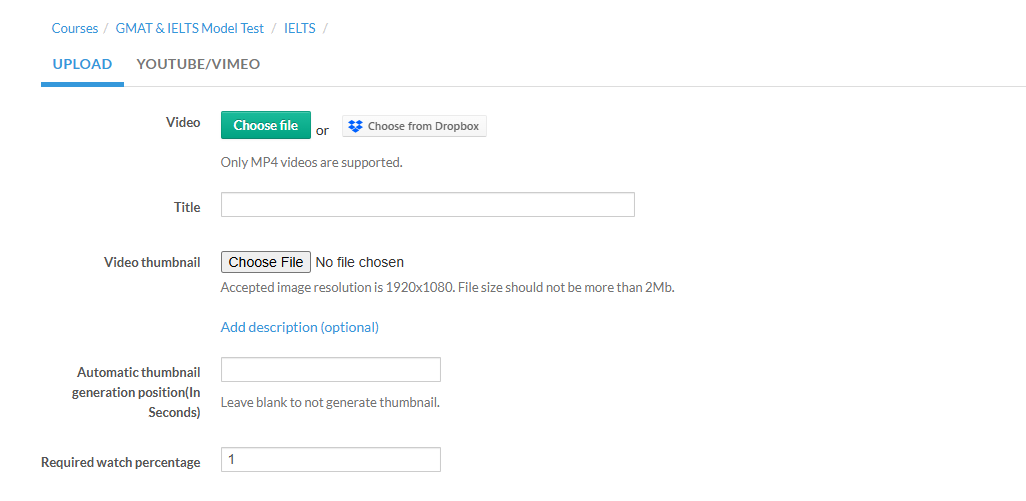
D. Add Video
Upload a video file and add a thumbnail, or
Alternatively , Paste a YouTube / video URL
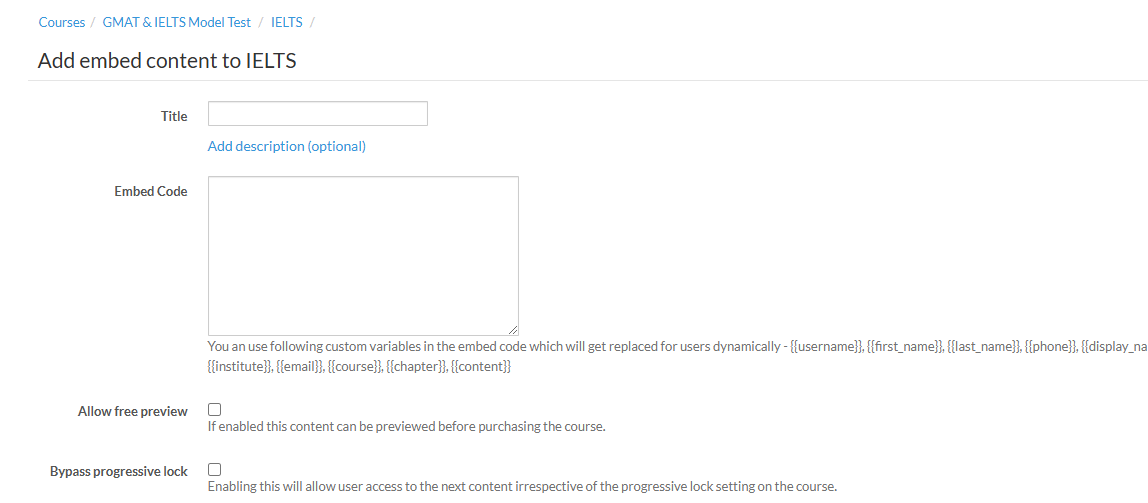
E. Add Embed Content
Copy the embed code (for example, from YouTube → Share → Embed)
Paste it into the embed section
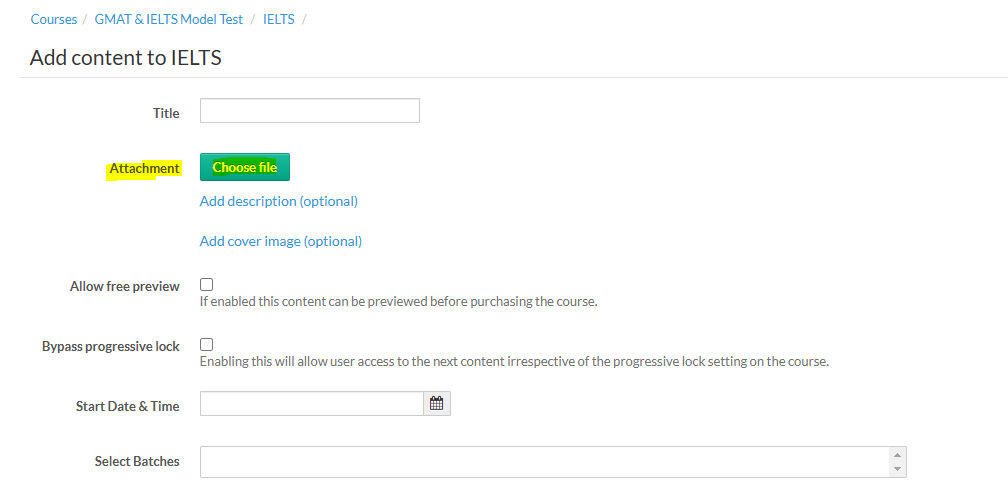
F. Add File
Upload files that learners can download to their devices.
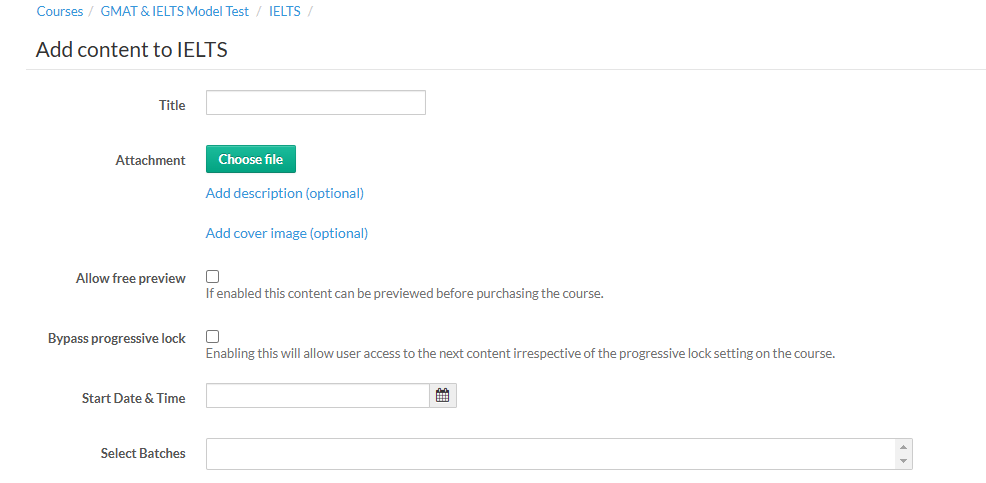
G. Add PDF
Upload PDFs directly to the platform.
PDFs added this way are view-only and not downloadable.
Assignment Setup
Step 1: Create Assignment
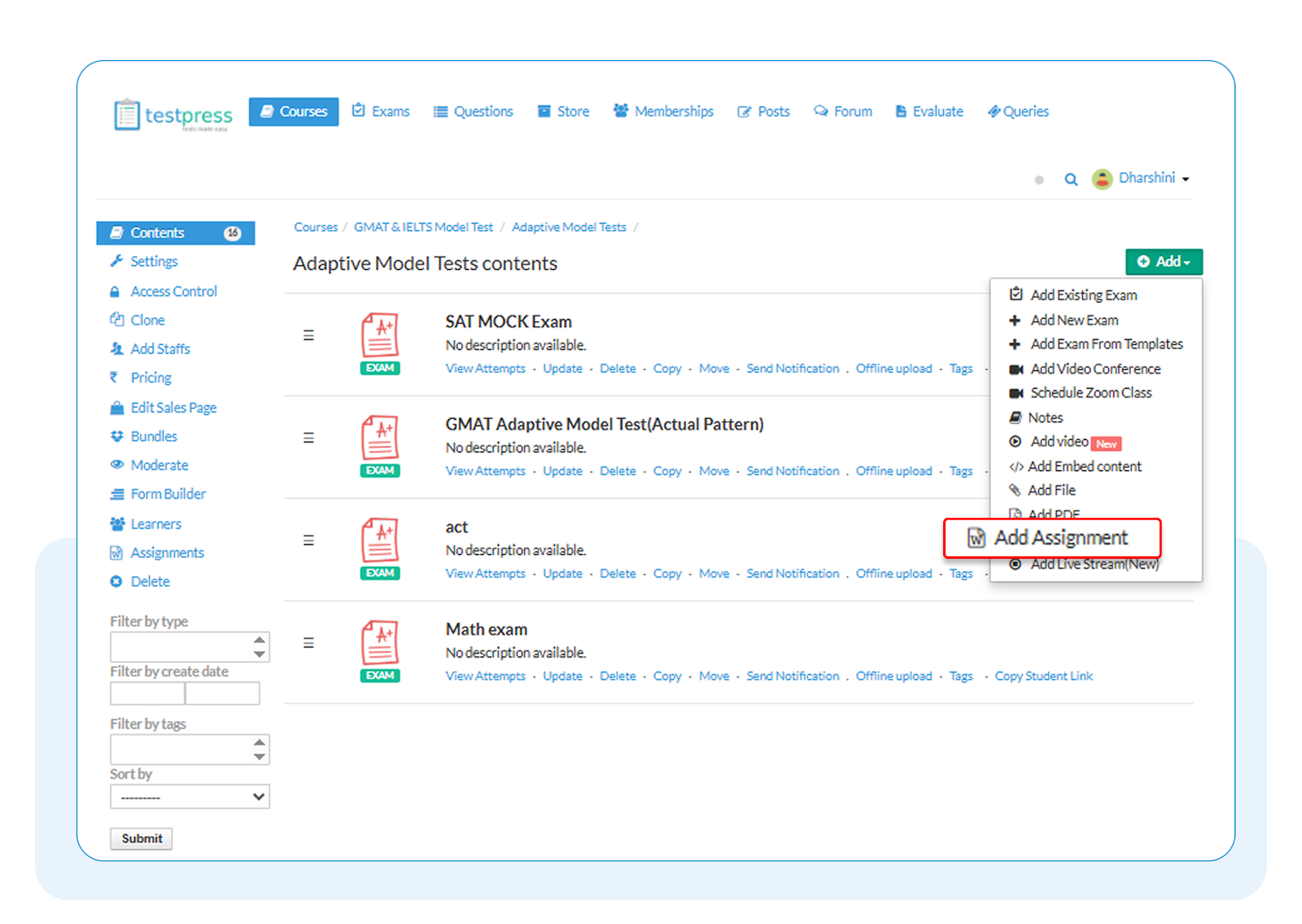
Go to the required chapter
Click Add Assignment
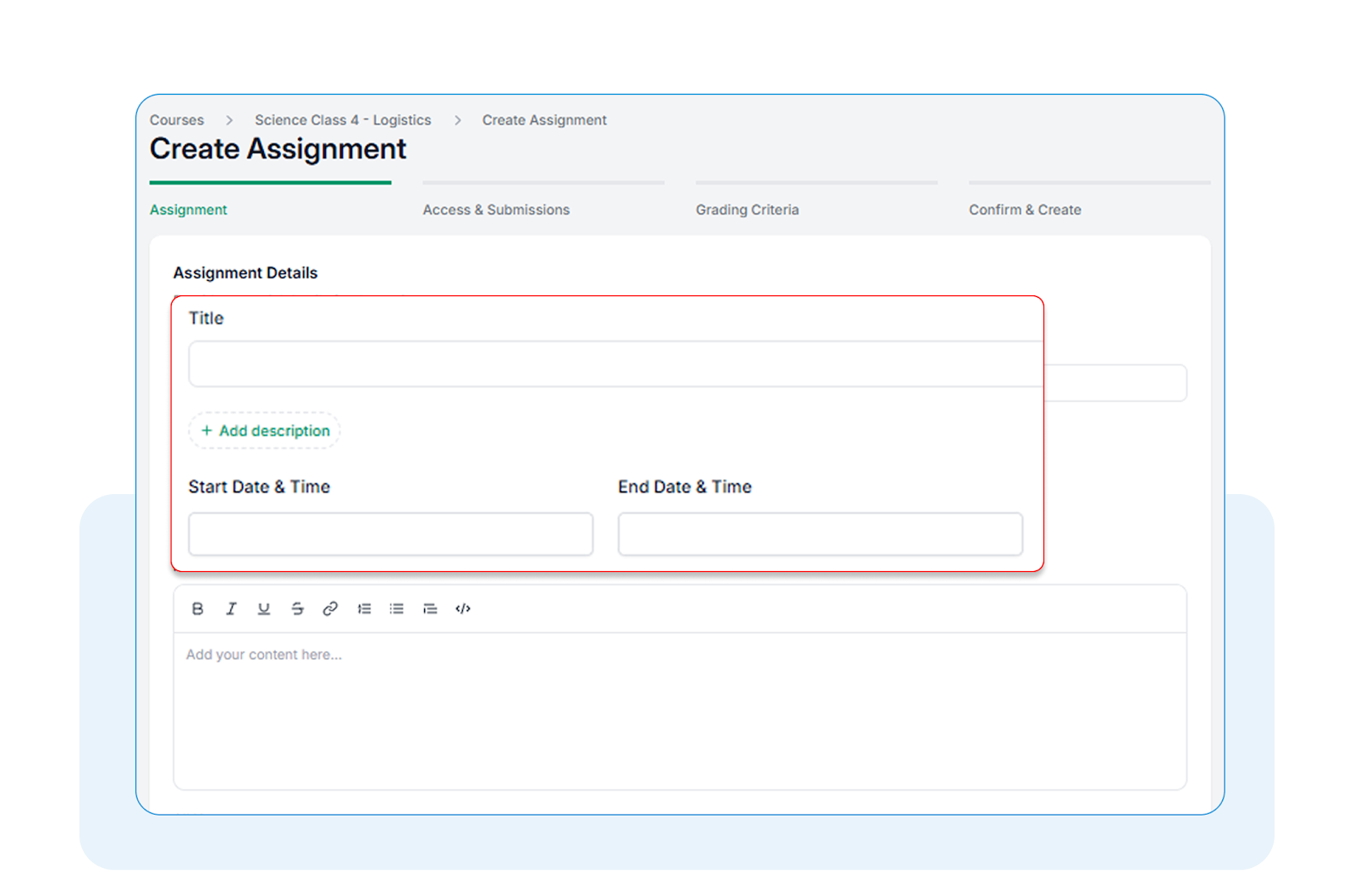
Step 2: Enter Assignment Details
Add assignment title
Set start and end date/time
Provide clear instructions
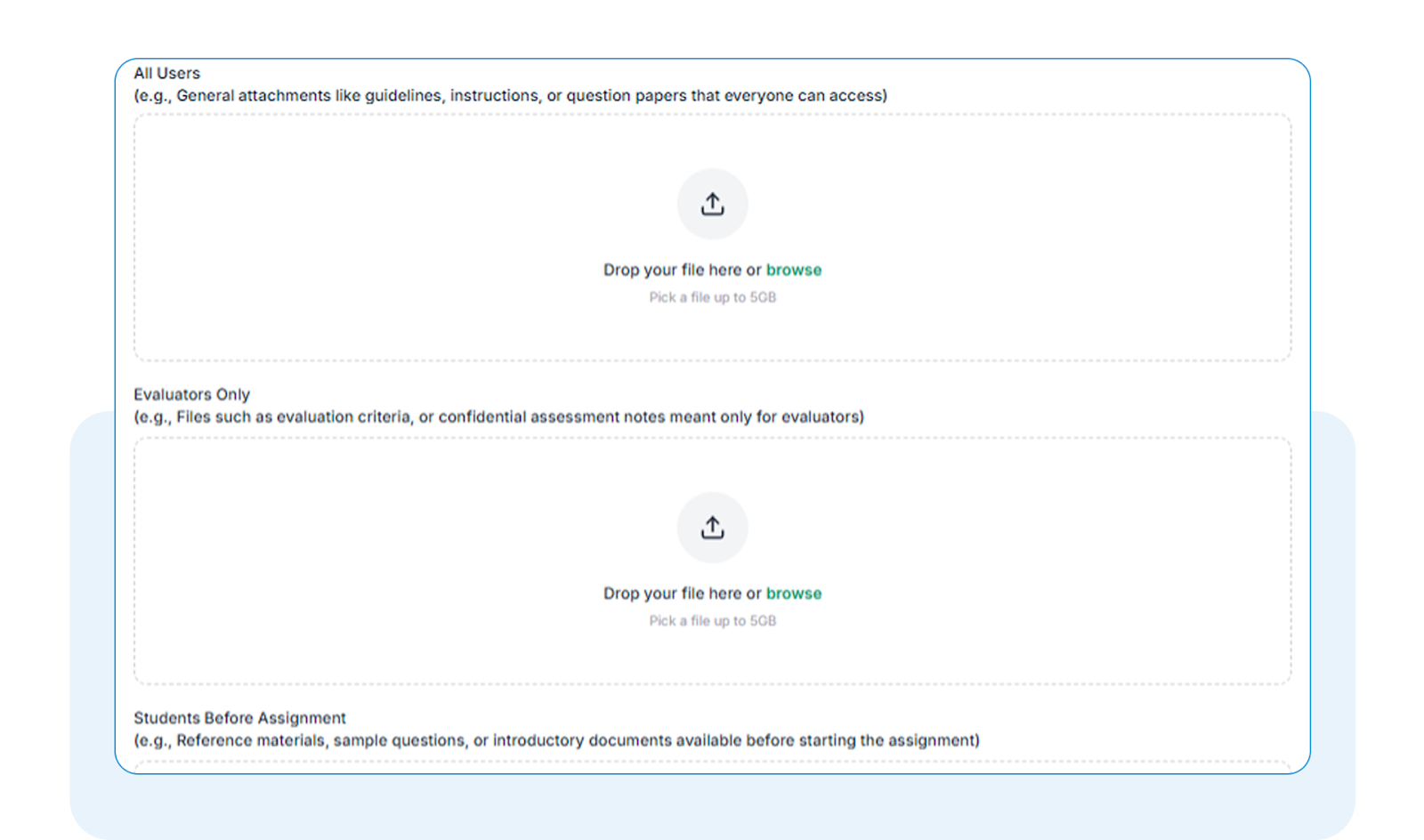
Step 3: Upload Supporting Files
Upload files under the appropriate category:
All Users – Question paper
Evaluators Only – Evaluation criteria
Students Before Assignment – Sample questions
Students After Completion – Answer keys
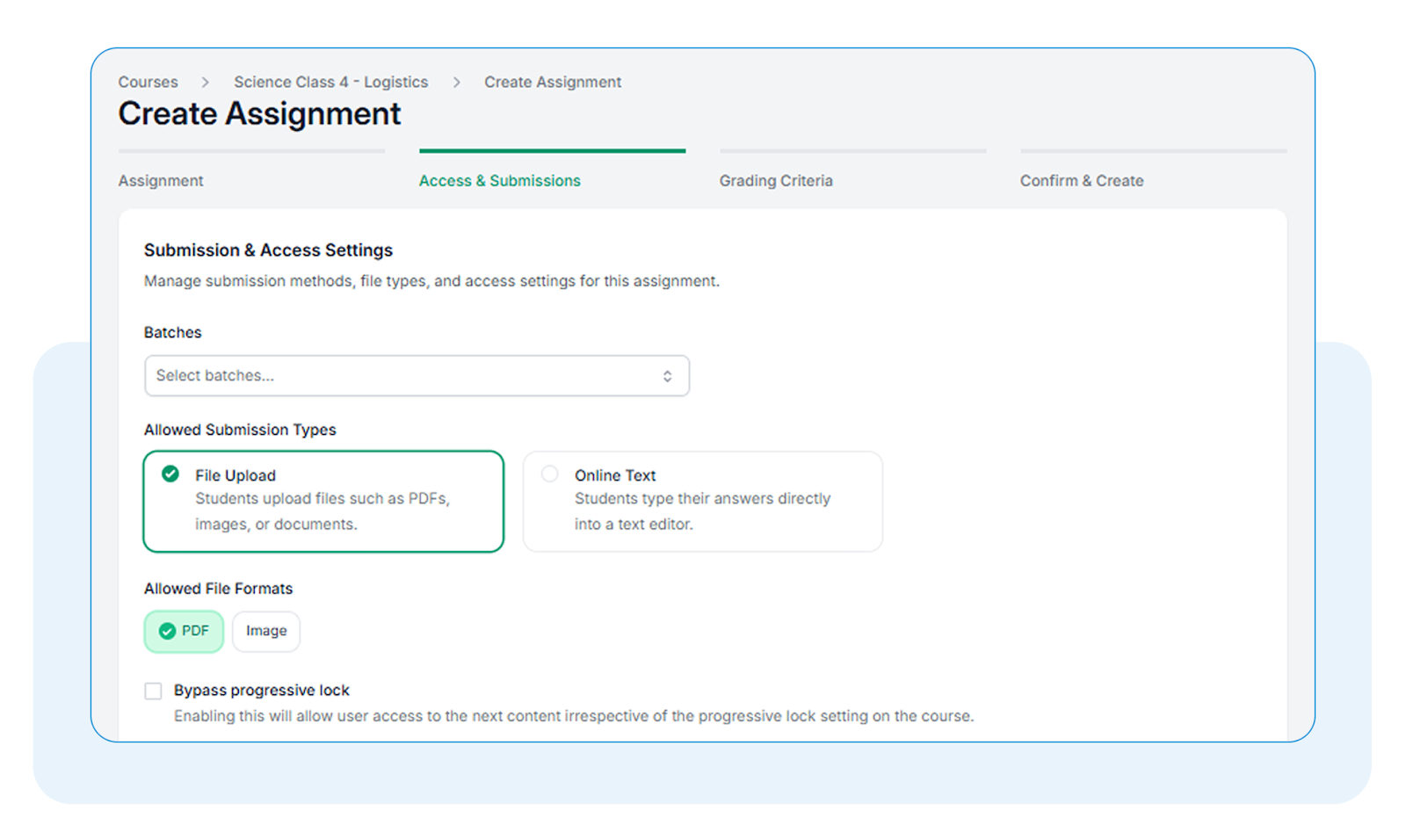
Step 4: Configure Submission Settings
Select applicable batches
Choose submission type:
File upload
Online text
Define allowed file formats (PDF, images, etc.)
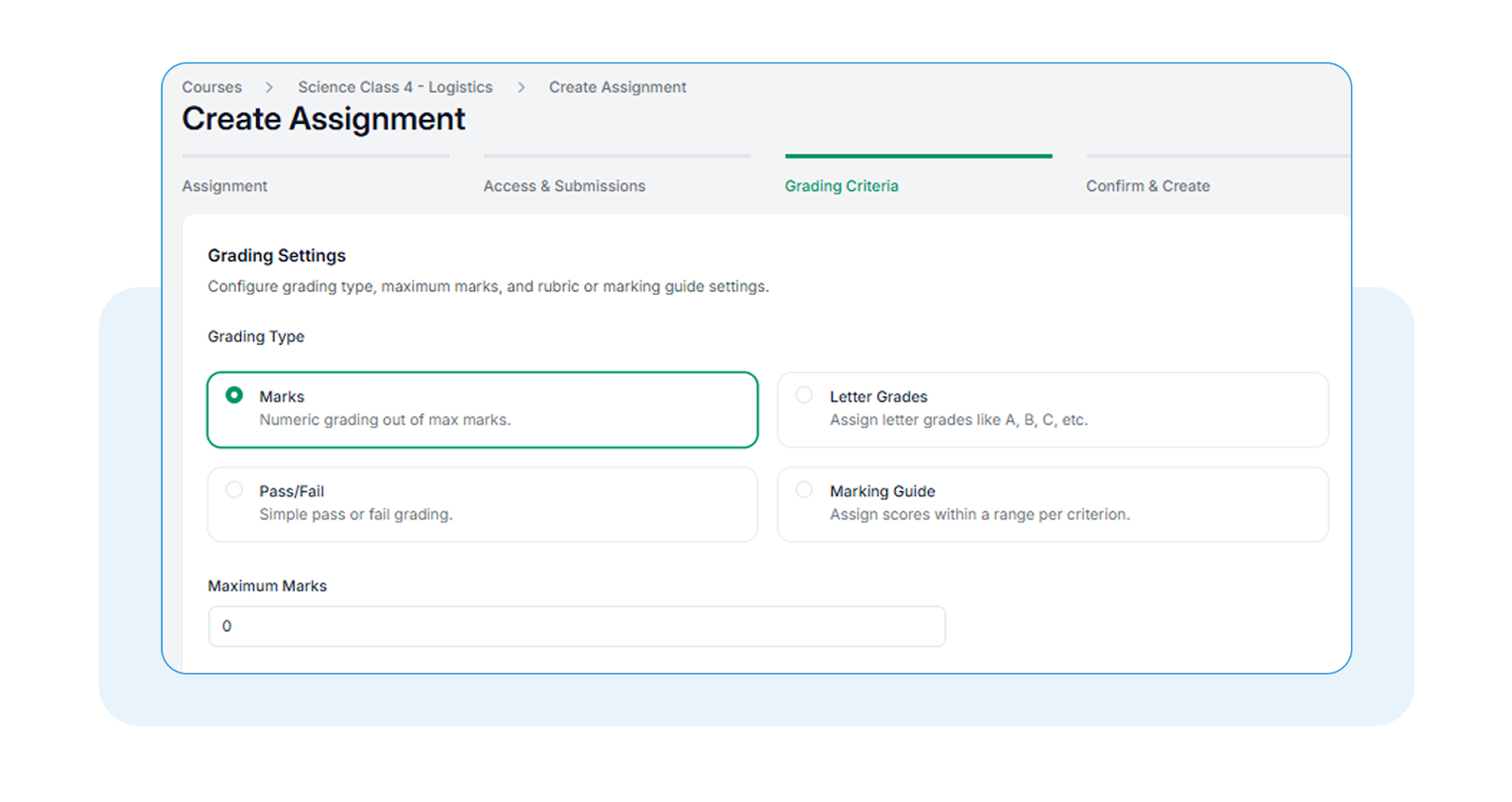
Step 5: Define Grading Criteria
Choose one grading method:
Marks
Letter grades
Pass/Fail
Marking guide
Set maximum marks if using numeric grading.
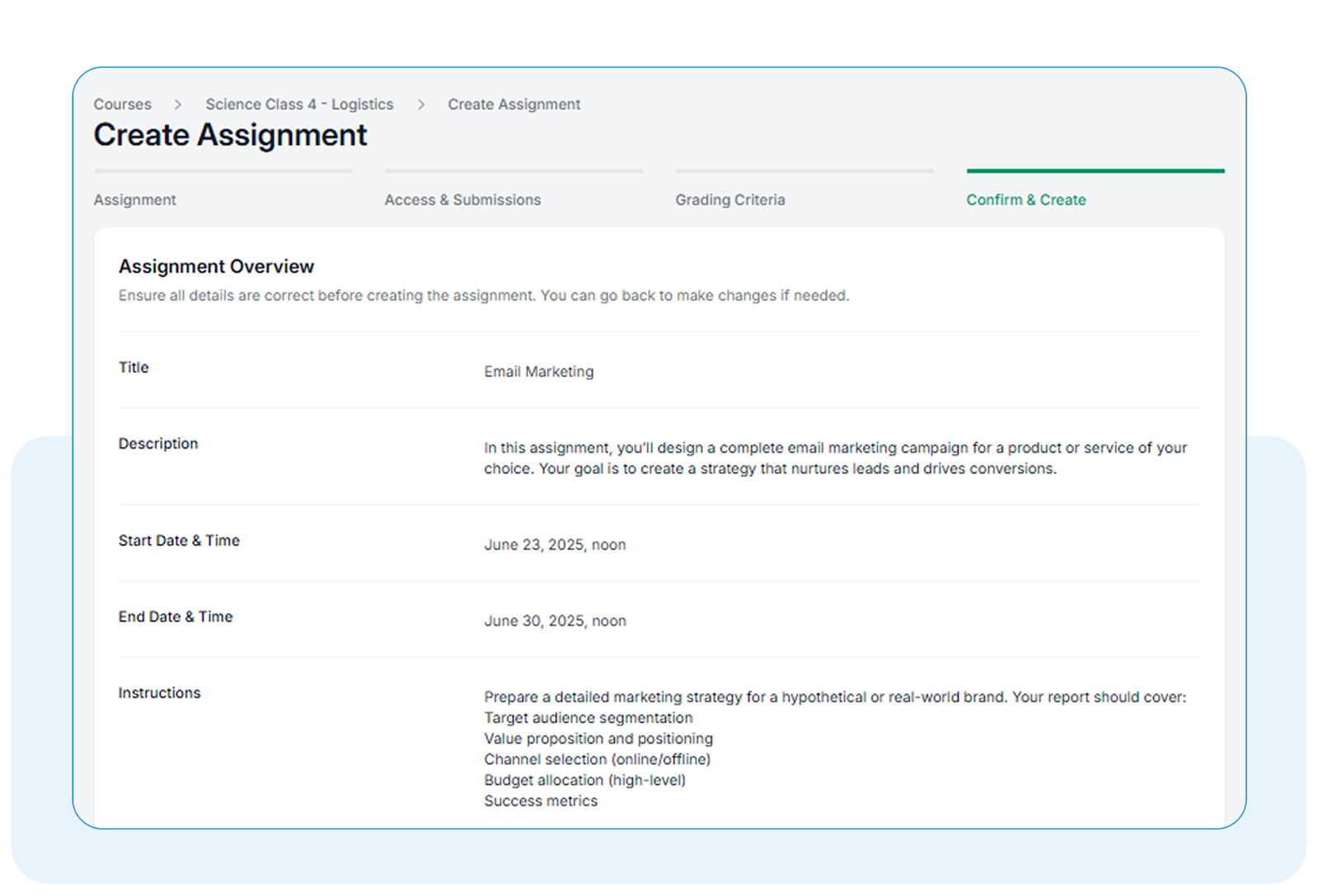
Step 6: Review and Publish
Review all assignment details
Click Next to confirm and publish
Was this article helpful?
That’s Great!
Thank you for your feedback
Sorry! We couldn't be helpful
Thank you for your feedback
Feedback sent
We appreciate your effort and will try to fix the article