To start accepting payments for your courses, you must connect your platform to a payment gateway. This allows learners to make secure payments using their preferred method.
The platform supports the following payment gateways:
Stripe
PayPal
In this guide, you’ll learn:
Available payment gateways
How to connect PayPal and Stripe
Where to get the required credentials (keys)
Connecting PayPal Payment Gateway
PayPal allows learners to pay using their PayPal balance, debit cards, or credit cards.
Steps to Connect PayPal
Go to Admin Dashboard
Navigate to Settings → Payment Gateways
Select PayPal
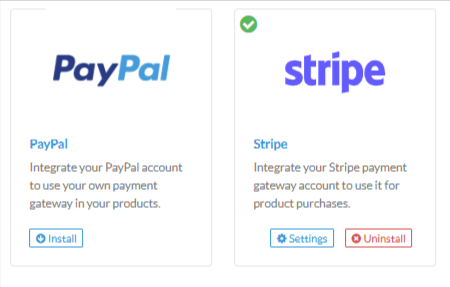
Enter the following details:
PayPal Client ID
PayPal Secret
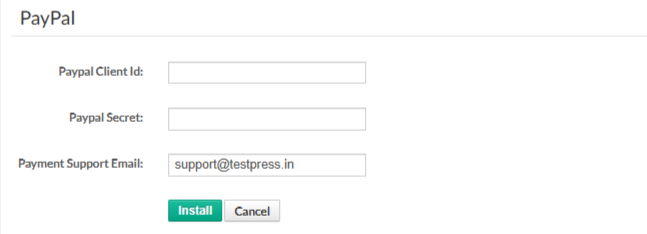
Click Save to complete the setup and install
Where to Get PayPal Client ID & Secret
You can generate these credentials from your PayPal Developer account.
Steps:
Visit the PayPal Developer Dashboard
Log in using your PayPal business account
Go to My Apps & Credentials
Choose Live (for real payments) or Sandbox (for testing)
Copy the Client ID and Secret
Paste these keys into the respective fields in Testpress.
Use Live credentials only when you’re ready to accept real payments.
Connecting Stripe Payment Gateway
Stripe enables fast and secure card payments across multiple countries.
Steps to Connect Stripe
Go to Admin Dashboard
Navigate to Settings → Payment Gateways
Select Stripe
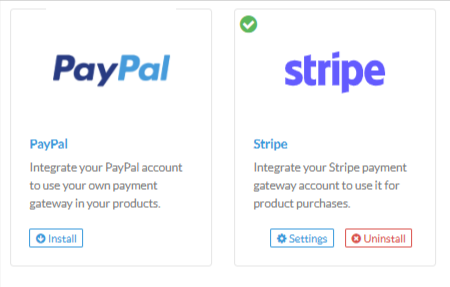
Enter the required Stripe keys
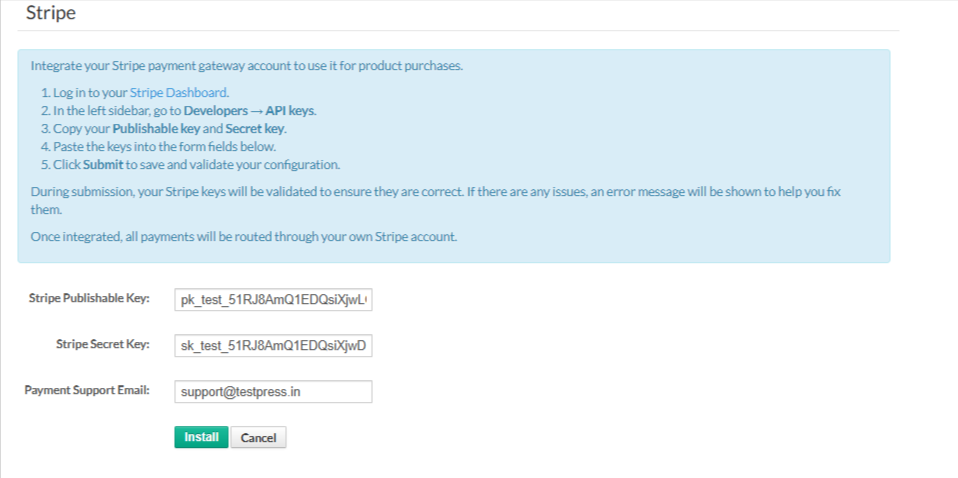
Click Save to activate Stripe payments
Where to Get Stripe API Keys
Stripe provides two keys for integration.
Steps:
Log in to your Stripe Dashboard
Go to Developers → API Keys
Copy:
Publishable Key
Secret Key
Paste these keys into the respective fields in Testpress.
Use Test keys for testing and Live keys for accepting real payments.
Important Notes & Tips
Ensure your payment gateway account is fully verified
Always double-check whether you are using Test or Live credentials
You can enable or disable payment gateways anytime from settings
Was this article helpful?
That’s Great!
Thank you for your feedback
Sorry! We couldn't be helpful
Thank you for your feedback
Feedback sent
We appreciate your effort and will try to fix the article