This section explains how you can view, filter, and take actions on members from the Members Management
View All Members
When you open Members, you will see the complete list of users in one place.
The list shows details like:
User name and display name
Joined date
Assigned batches
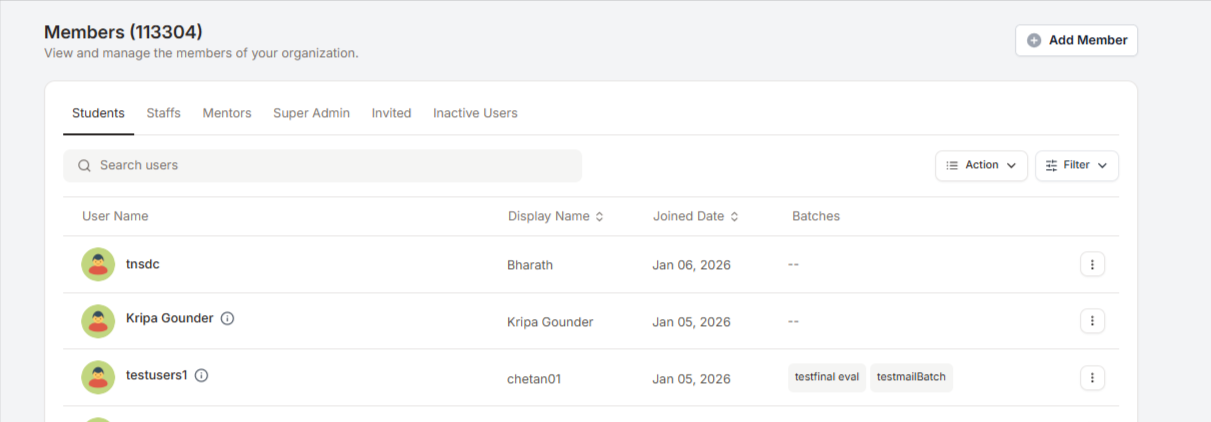
You can easily search for a user using the search bar at the top.
Filter Members
Use the Filter option to narrow down the list based on your needs.
You can filter members by:
Approval status (Approved, Pending, Blocked)
Batches
Joined date
Custom field criteria
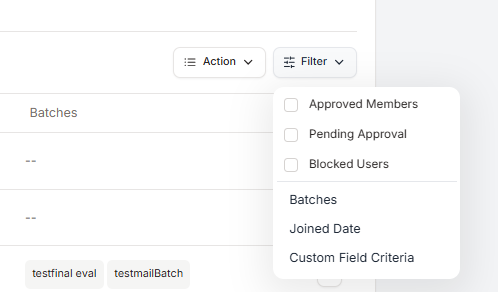
This helps you quickly find specific users without scrolling through the full list.
Perform Actions on Members
Select one or more users and click Action to perform bulk operations.
You can:
Send emails
Export user data as Excel
Export active users
Send push notifications
Update user details in bulk
Block or unblock users in bulk
Update passwords for multiple users
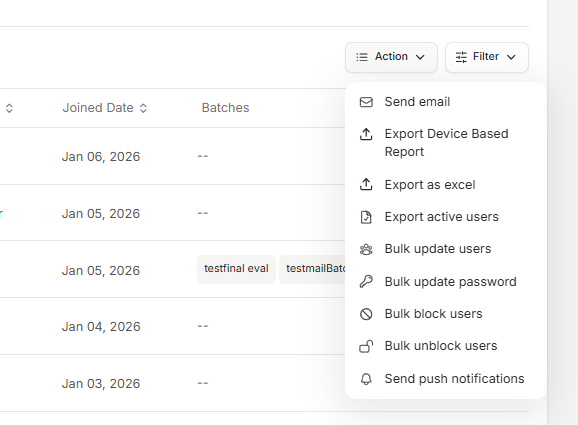
These actions help you manage users efficiently, especially when handling large groups.
Members Management helps you stay organized by giving you full control to view users, filter them easily, and take quick actions all from one place.
Was this article helpful?
That’s Great!
Thank you for your feedback
Sorry! We couldn't be helpful
Thank you for your feedback
Feedback sent
We appreciate your effort and will try to fix the article