This section helps you understand how to clone an existing batch and delete a batch from the Batch Management module. These options are useful when you want to quickly create a similar batch without reconfiguring everything from scratch or remove batches that are no longer required.
Clone Batch
Cloning a batch allows you to create a duplicate of an existing batch with the same configuration. You can then rename and modify it as needed.
Steps to Clone a Batch
Navigate to Batch Management under Memberships

Locate the batch you want to duplicate.
Click on Actions next to the batch.
Select Clone.
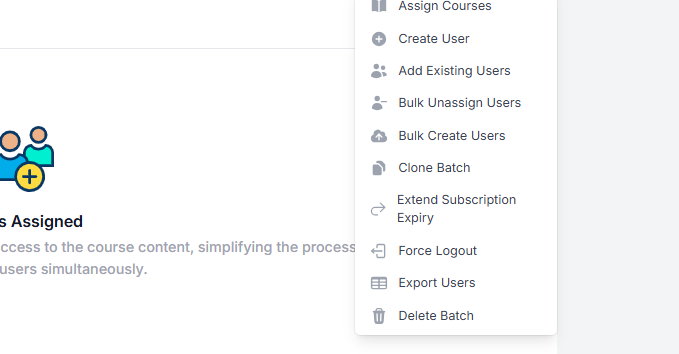
5. In the Clone Copy of [Batch Name] screen, update the Name field if required.

Click Submit to create the cloned batch.
Once submitted, a new batch will be created with the same settings as the original batch.
Delete Batch
Deleting a batch permanently removes it from the system. You can also choose to delete all users associated with the batch.
Steps to Delete a Batch
Navigate to Batch Management under Memberships

Find the batch you want to remove.
Click on Actions next to the batch.
Select Delete.
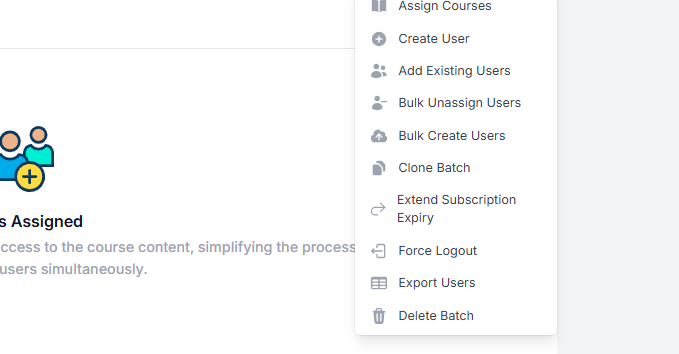
In the confirmation screen, review the message carefully.
Select Also delete users present in this batch if you want to remove all associated users (Optional)

Click Submit to confirm deletion, or Cancel to abort.
Note: Deleting a batch is irreversible. Please ensure you select the correct batch and user deletion option before confirming.
Was this article helpful?
That’s Great!
Thank you for your feedback
Sorry! We couldn't be helpful
Thank you for your feedback
Feedback sent
We appreciate your effort and will try to fix the article