This section explains how to create and manage discounts in Testpress. Discounts help you offer price reductions based on your sales strategy across all products, specific products, subscription plans, or selected users.
Testpress supports four types of discounts, each designed for a different use case.
Discount Types Available
Testpress allows you to create the following discount types:
Site-wide Discount
Product-Specific Discount
Subscription Plan–Specific Discount
User-Specific Discount
1. Site-wide Discount
What is a Site-wide Discount?
A site-wide discount applies the same discount code to all products available on your portal.
This is commonly used for:
Festive offers
Limited-time promotions
Platform-wide sales
How Site-wide Discount Works?
Go to Admin Dashboard → Settings → Discounts
Click Create Discount
Select Site-wide Discount
Fill in the following details:
Name – Internal name for your reference
Code – Code users will enter during checkout
Discount Value – Percentage discount
Start Date & End Date – Validity period
Maximum Number of Redemptions – Optional usage limit
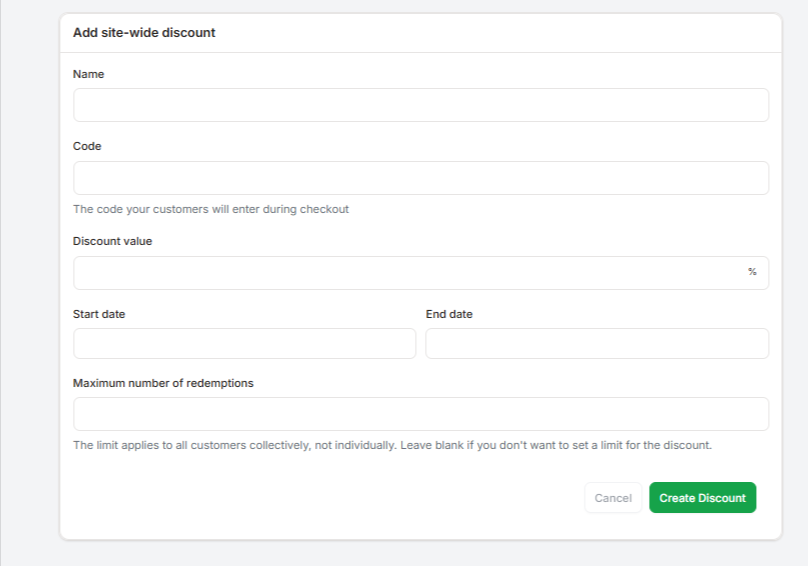
Click Create Discount
Once created, the discount applies automatically to all products.
2. Product-Specific Discount
What is a Product-Specific Discount?
A product-specific discount applies only to selected products, not the entire store.
This is useful when:
Promoting a particular course or test
Running targeted campaigns
Offering discounts on newly launched products
How Product-Specific Discount Works
Go to Admin Dashboard → Settings → Discounts
Click Create Discount
Select Product-Specific Discount
Select one or more products
Enter:
Discount Code
Discount Value
Start & End Dates
Maximum Redemptions (optional)
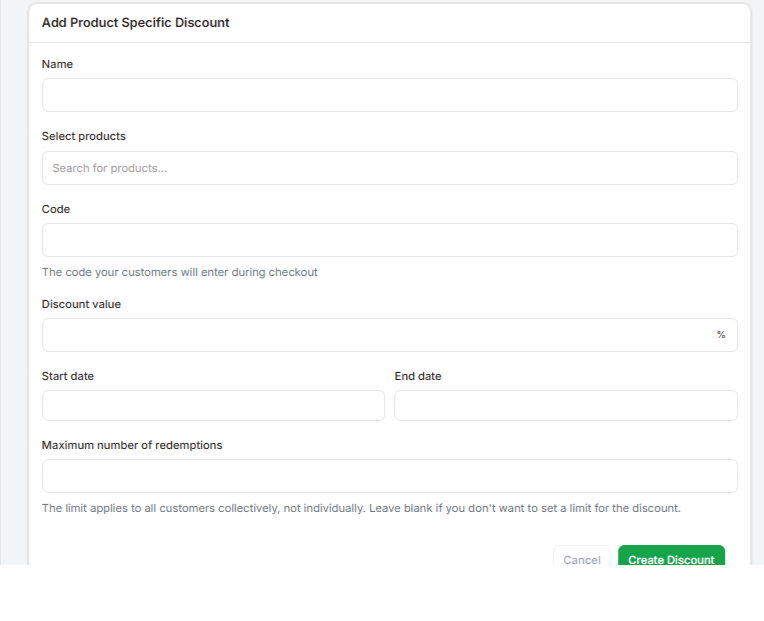
Click Create Discount
Only the selected products will accept this discount code at checkout.
3. Product Subscription –Specific Discount
What is a Subscription Plan–Specific Discount?
This discount applies only to specific subscription plans, such as monthly or yearly memberships.
Best suited for:
Membership offers
Renewal campaigns
Limited-time subscription pricing
How Subscription Plan–Specific Discount Works?
Go to Go to Admin Dashboard → Settings → Discounts
Click Create Discount
Select Subscription Plan–Specific Discount
Choose the subscription plan
Set:
Discount Value
Discount Type (percentage/ inr)
Discount Code
Validity dates
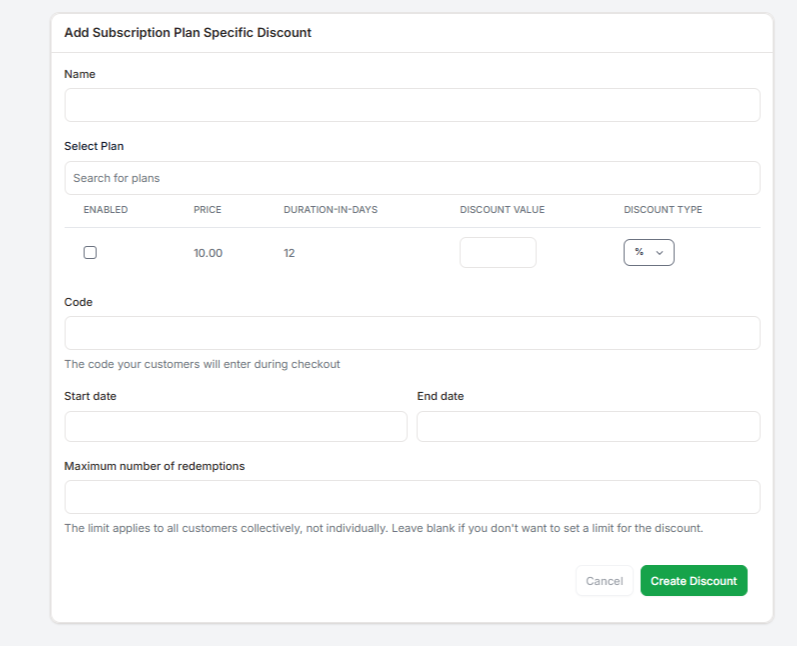
Click Create Discount
The discount will apply only to the selected subscription plan.
4. User-Specific Discount
What is a User-Specific Discount?
A user-specific discount is created for selected users or groups, offering them a personalized discount.
This is useful for:
Special user offers
Retention campaigns
One-time compensation discounts
How User-Specific Discount Works?
Go to Go to Admin Dashboard → Settings → Discounts
Click Create Discount
Select User-Specific Discount
Select:
Users
Product or subscription plan
Enter:
Discount Value
Validity dates
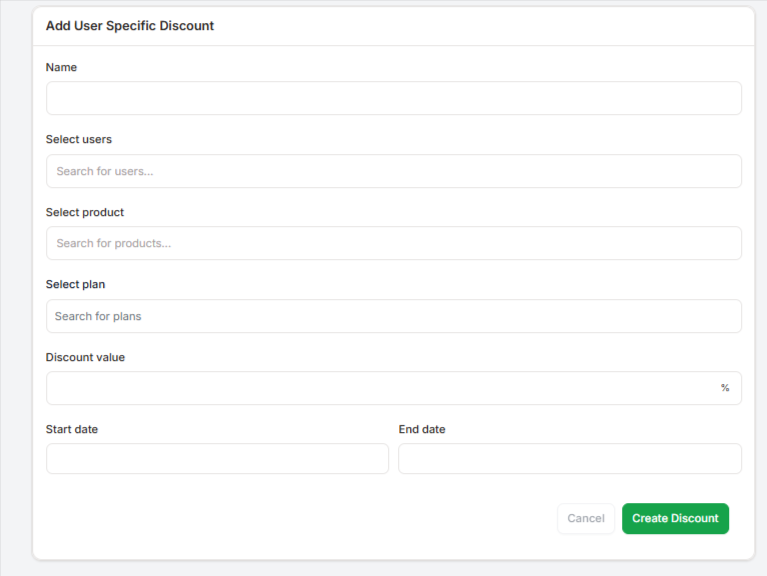
Click Create Discount
Only the selected users will be able to use this discount.
Notes
Discount codes are entered by users during checkout
Discount limits apply across all users, not individually
Expired discounts stop working automatically
Was this article helpful?
That’s Great!
Thank you for your feedback
Sorry! We couldn't be helpful
Thank you for your feedback
Feedback sent
We appreciate your effort and will try to fix the article