Microsoft Teams integration lets instructors schedule and manage live classes directly in Testpress using Teams as the video provider. Once connected, students can join classes via a single “Join Class” button regardless of whether Teams or Zoom is used.
Why Integrate Microsoft Teams?
Seamless scheduling: Choose Teams when creating live classes without juggling multiple platforms.
Unified student experience: Students don’t need to know which provider is hosting — they just click Join Class.
Simple setup: Connect your Microsoft 365 account with a one-click authorization.
More flexibility: Use Zoom and Teams side-by-side as needed.
How to Enable Microsoft Teams Integration
Steps to Connect Microsoft Teams
Go to Settings.
Click on Apps (or Integrations).
Find and select Microsoft Teams.
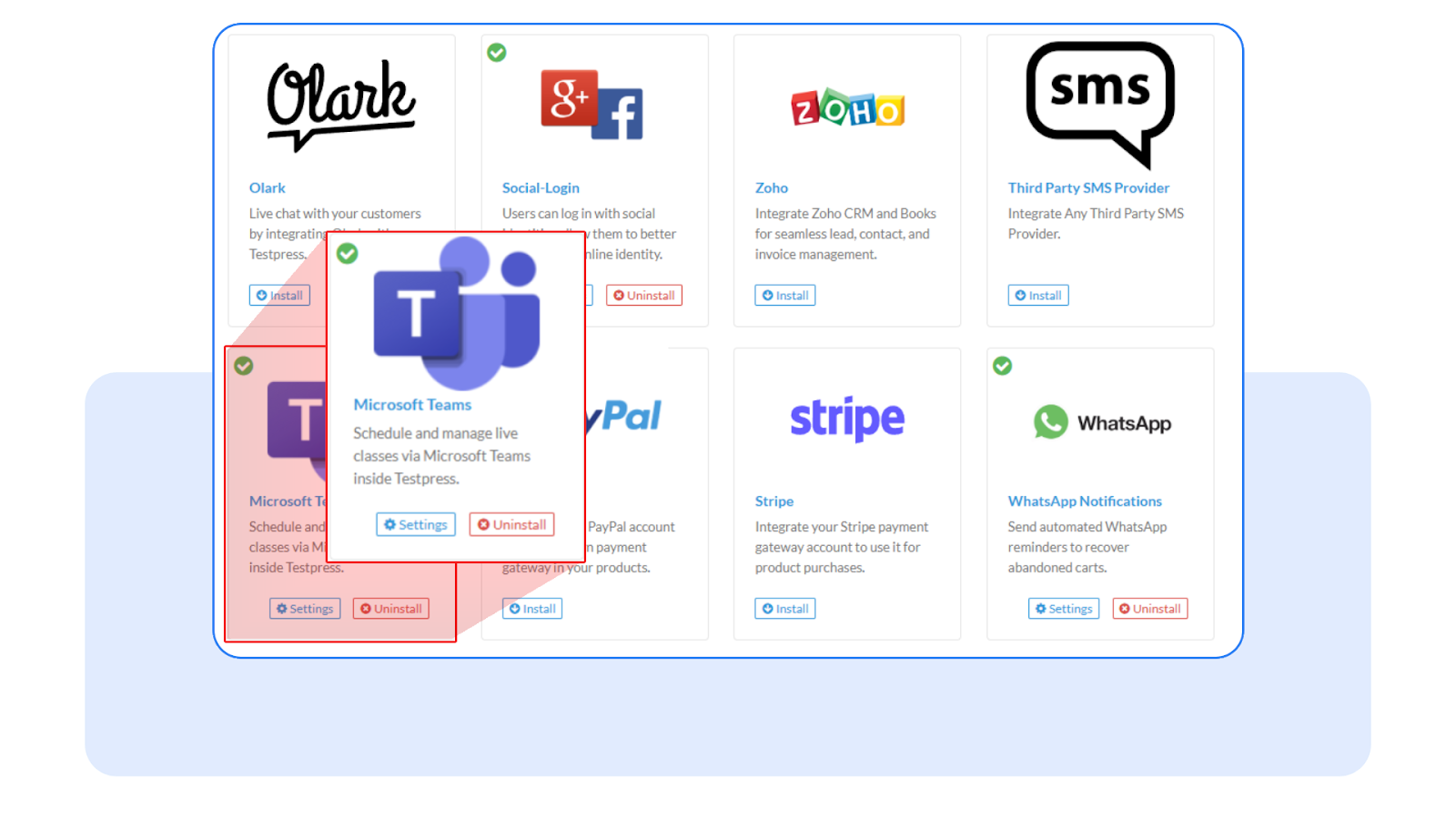
Click Connect Microsoft Teams.
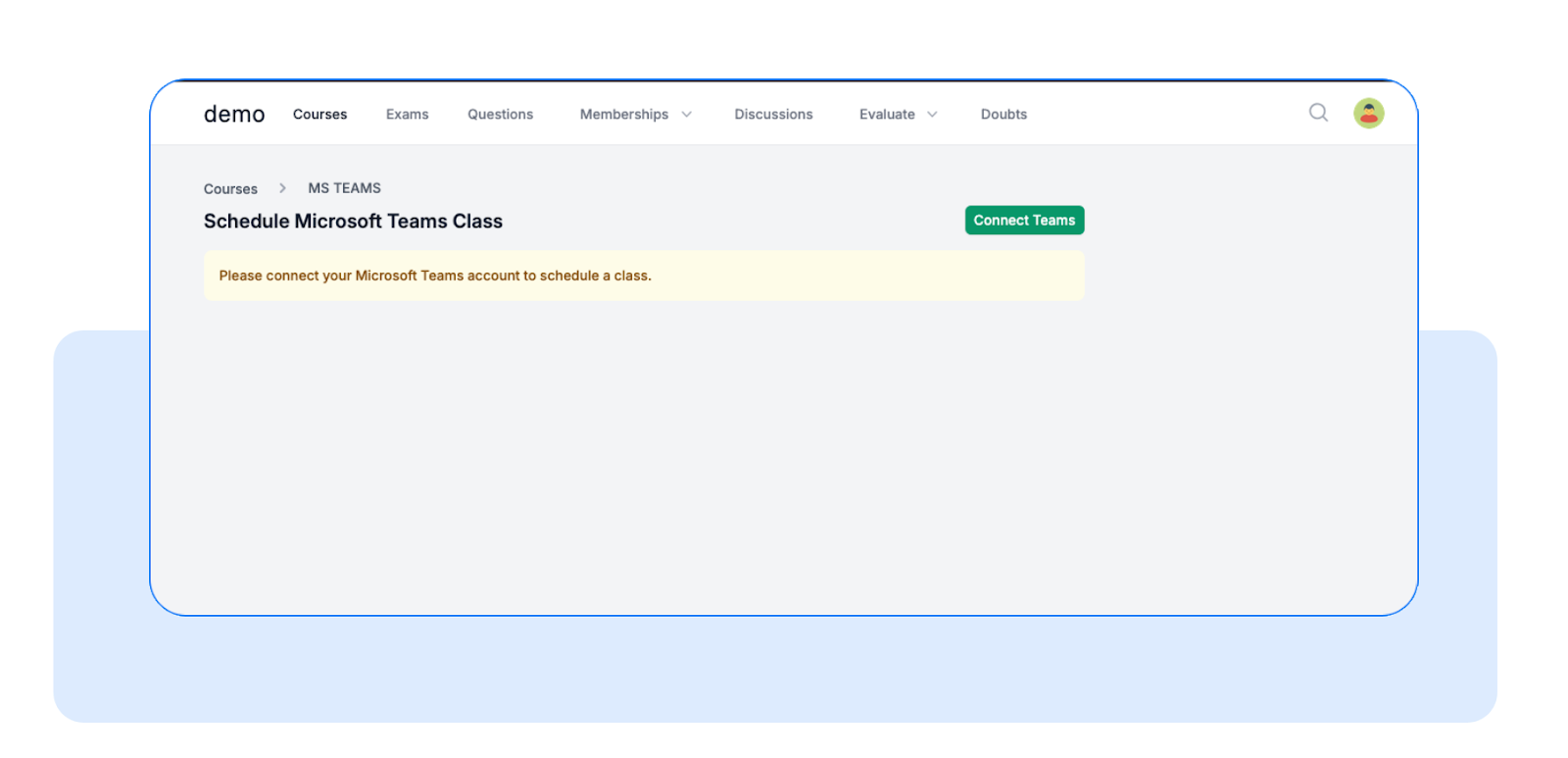
A Microsoft sign-in page will open - sign in using your Microsoft 365 credentials.
Authorize Testpress access to link your Teams account.
Once connected, Teams becomes available as a video provider when scheduling live classes.
How to Use Teams for Live Classes
When creating or editing a live class, choose Microsoft Teams as the video provider.
Configure class details like title, duration, date, and access settings.
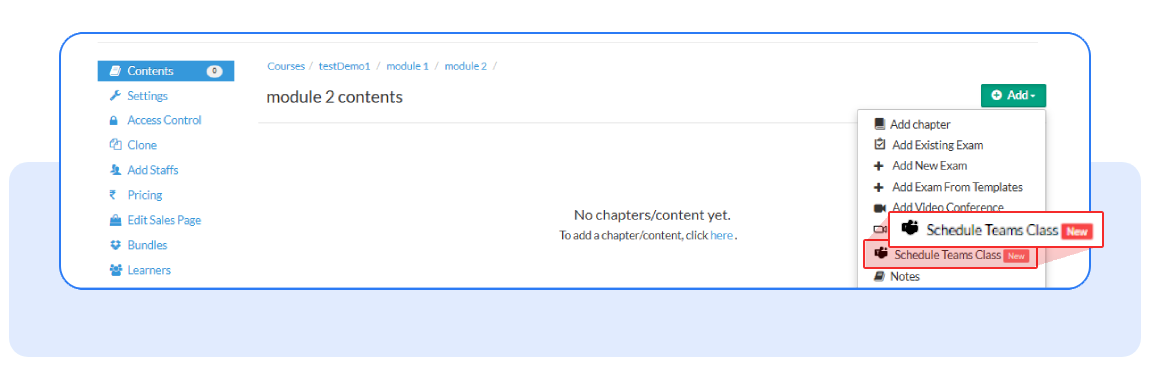
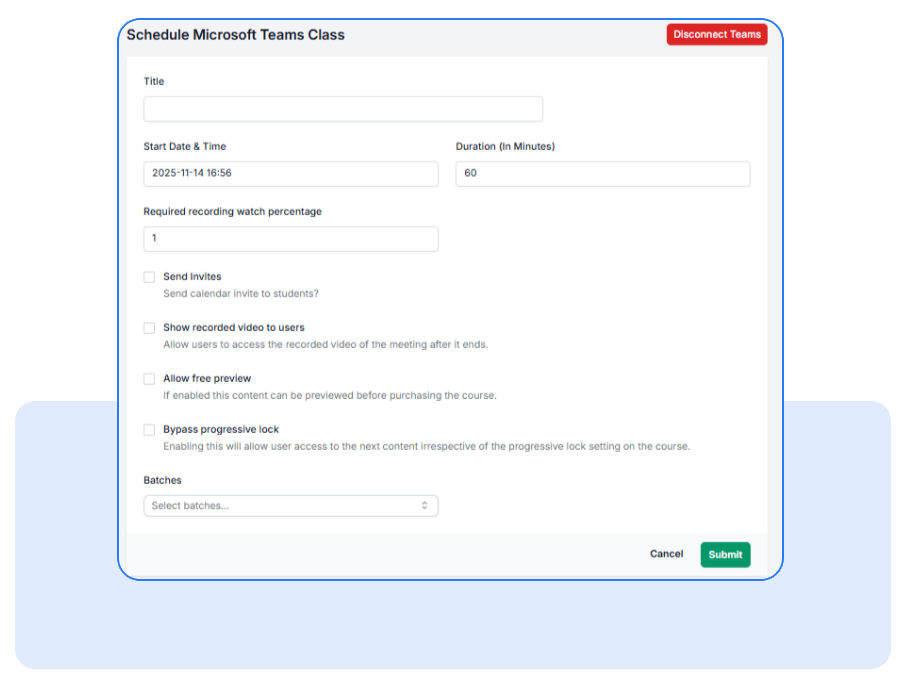
Save or schedule the class.
Students will see a “Join Class” button on the session page and can join without needing separate Teams links.
Important Notes
After connecting once, instructors can reuse the Teams setup for future live classes.
You can continue using Zoom or Teams — choose based on your preference per class.
Instructors don’t need admin-level Microsoft permissions to schedule classes once Teams is connected.
Troubleshooting Tips
If the Teams login fails, ensure your Microsoft 365 account has permission to authorize apps.
Make sure pop-ups are allowed during the authorization step.
If Teams doesn’t show as an option while scheduling, try reconnecting from Settings.
Was this article helpful?
That’s Great!
Thank you for your feedback
Sorry! We couldn't be helpful
Thank you for your feedback
Feedback sent
We appreciate your effort and will try to fix the article